I’ve been a travel and street photographer for years now, and one thing has always bugged me: checking how a photo looks at different aspect ratios is a pain.
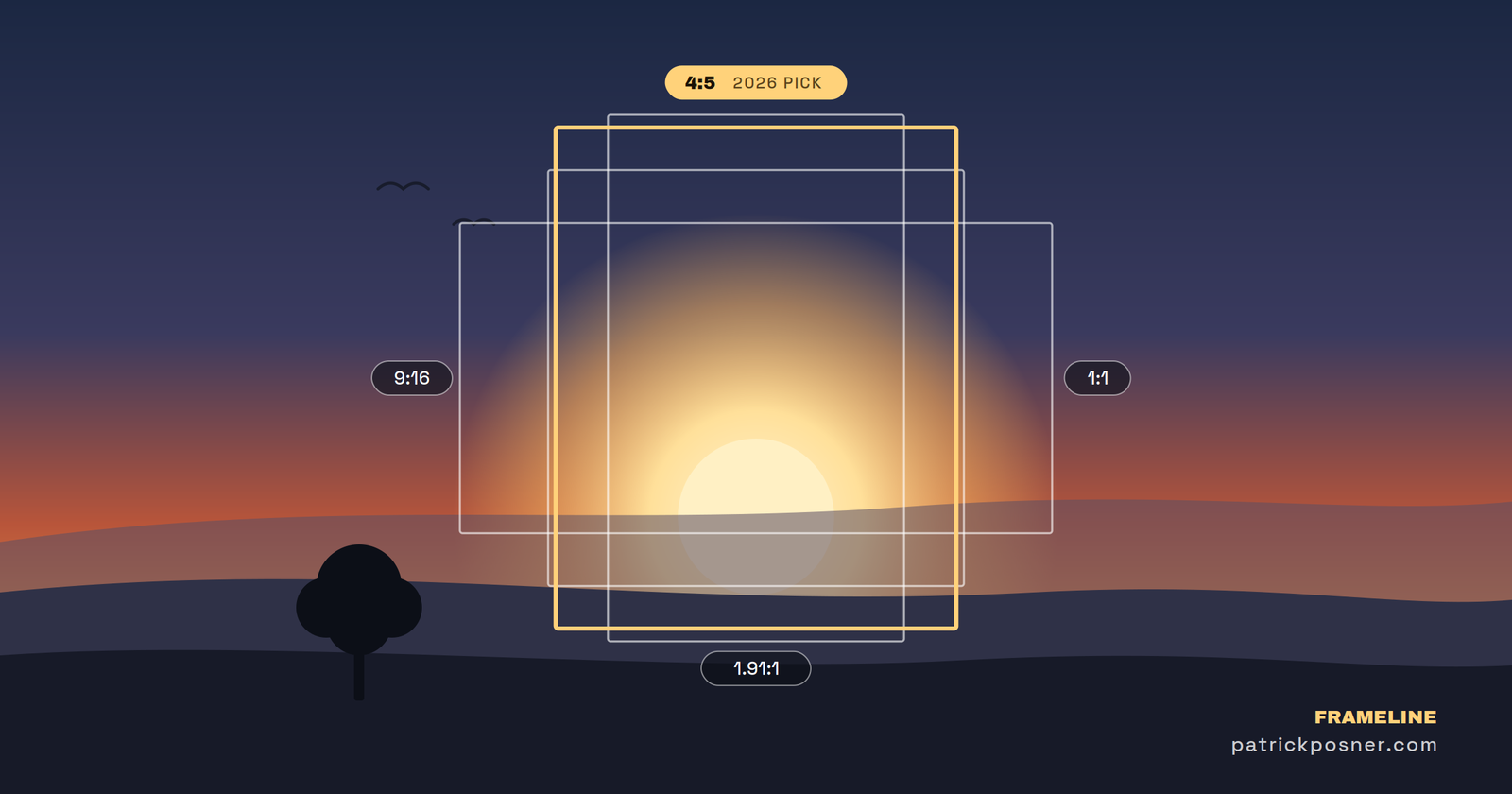
Want to see if your shot works as a 4:5 for Instagram? Open Lightroom, set the crop tool, and drag it around. Now try 16:9 for a YouTube thumbnail. Reset, adjust, squint. What about 2.39:1 for that cinematic vibe? You get the idea – it’s tedious, and you lose your train of thought between each switch.
So I built Frameline.
What Frameline Does
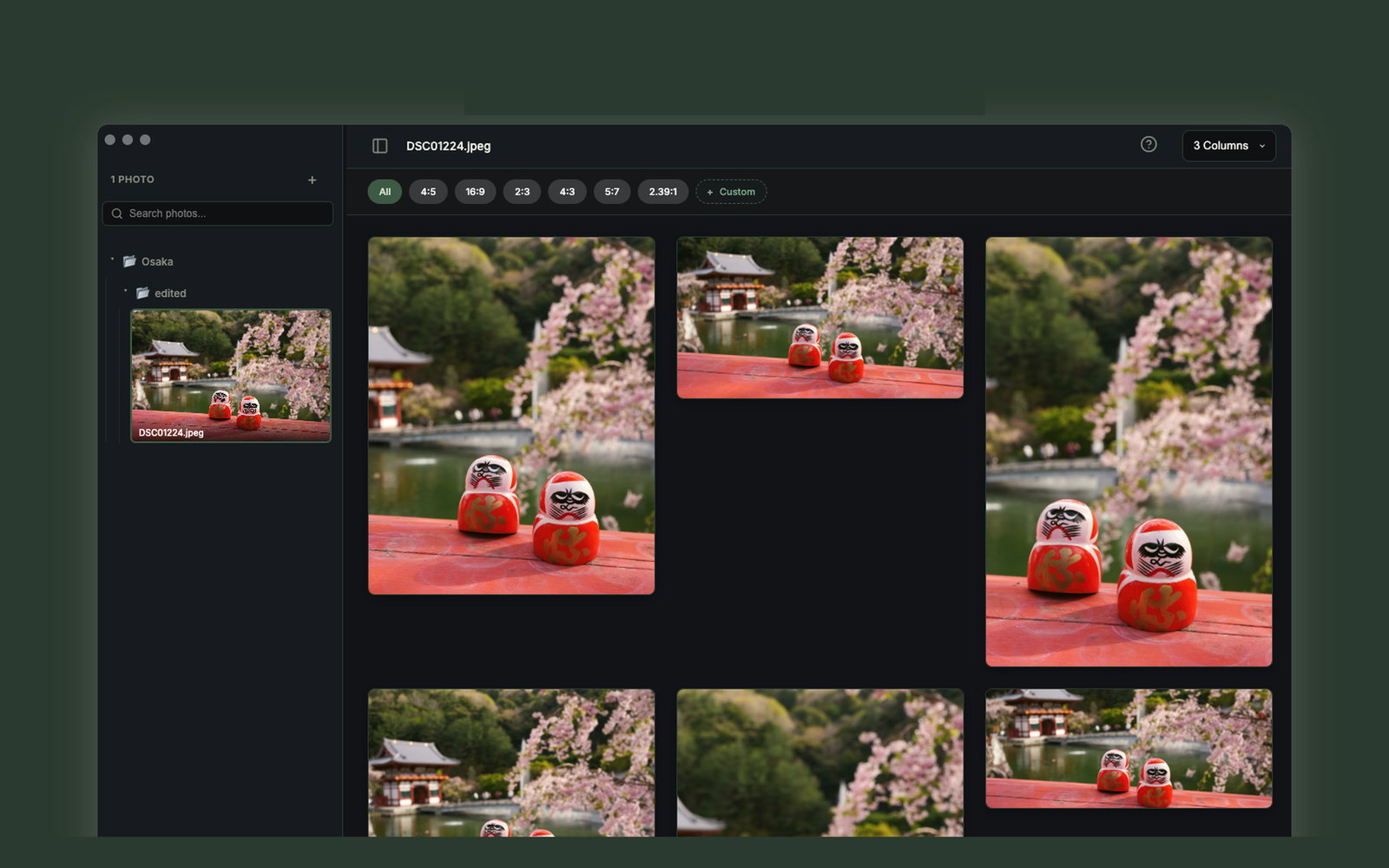
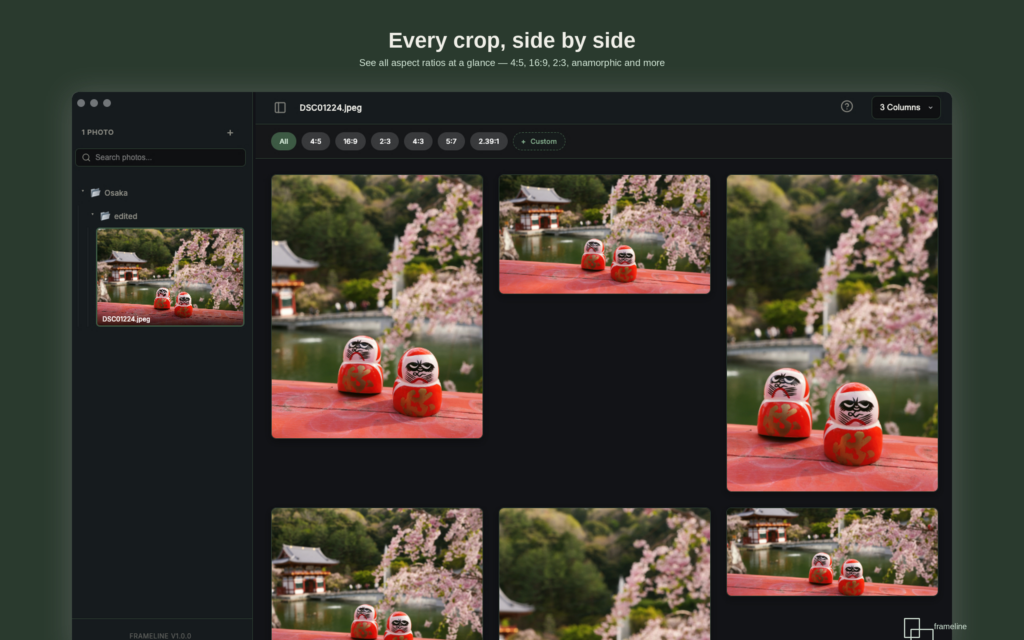
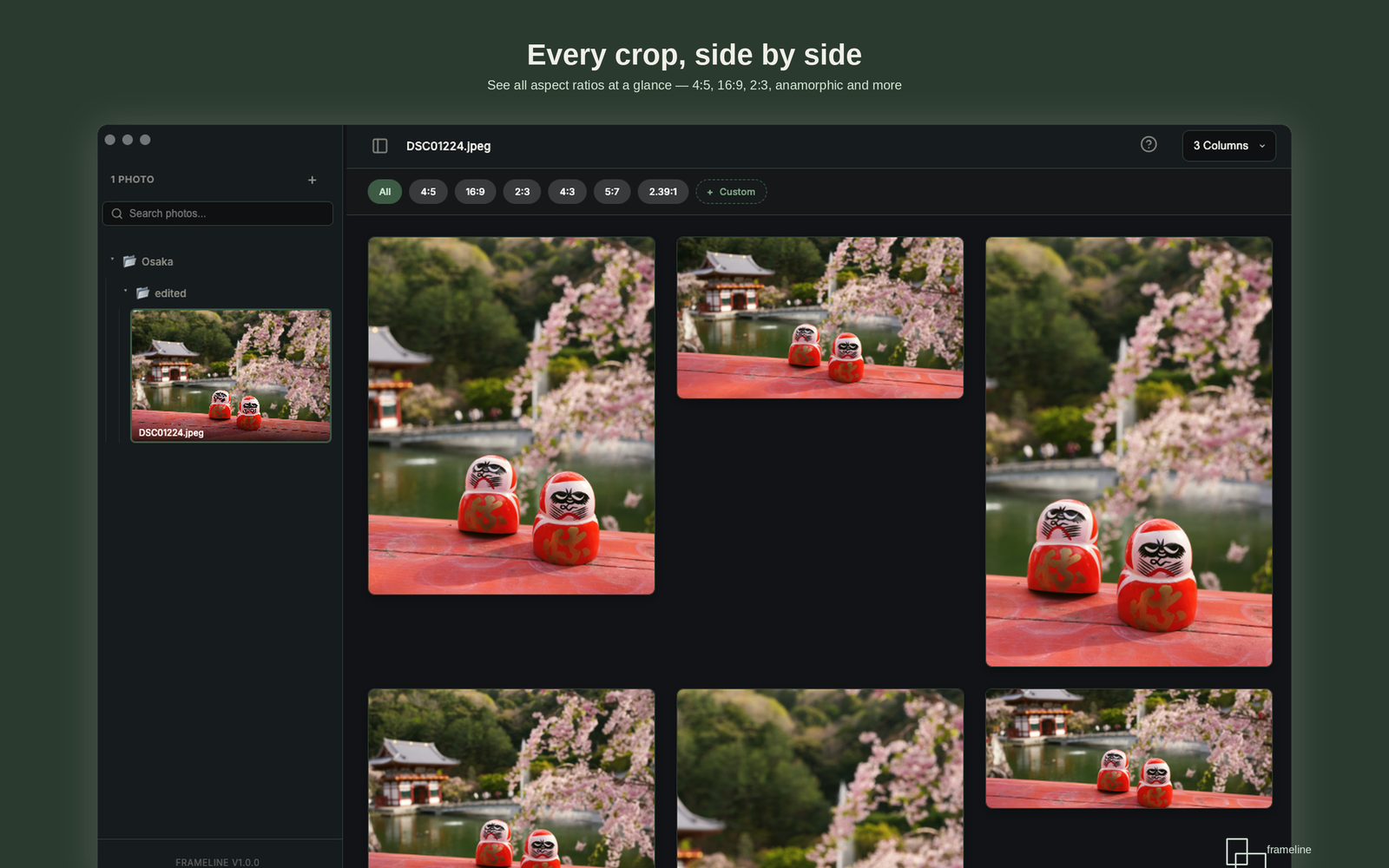
Frameline is a macOS app that lets you see your photo in every aspect ratio at once. Load an image, and you immediately get a grid of crop previews – 4:5, 1:1, 16:9, 3:2, 2.39:1, and dozens more, all side by side. No clicking through dropdown menus. No resetting crop tools.
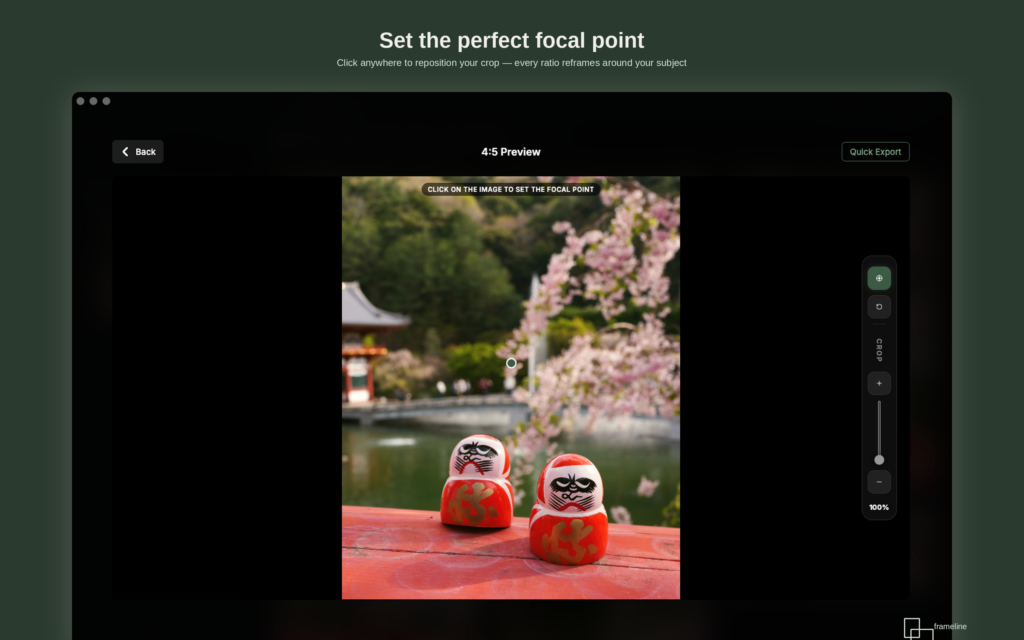
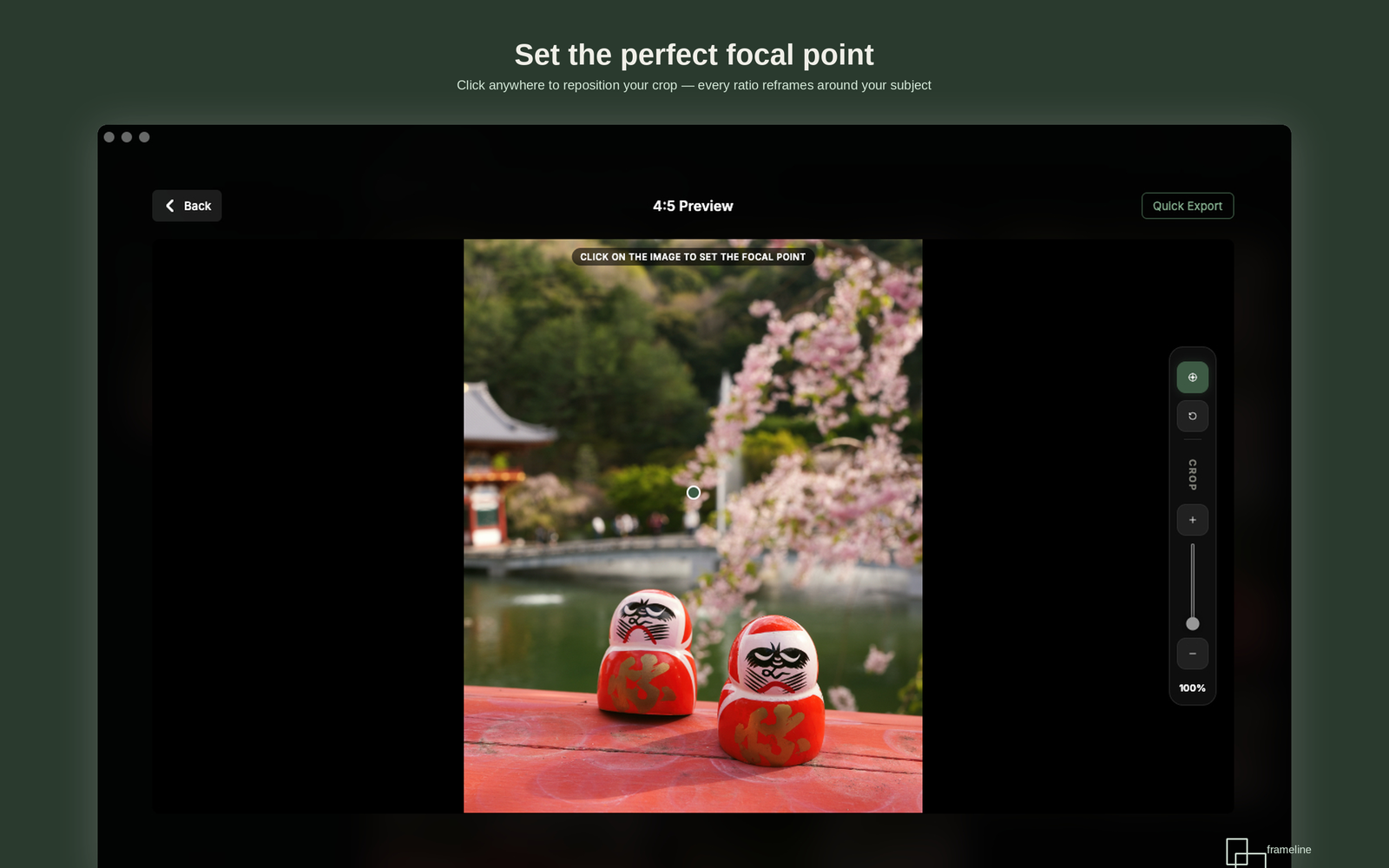
If a crop doesn’t sit right, drag to reposition it. Once you’re happy, check the ratios you need and hit export. All selected crops are saved in one click, neatly organized into folders.
That’s it. Load, preview, reposition, export. The whole workflow takes seconds instead of minutes.
Why I Built This
The honest answer: I got tired of opening Lightroom just to check how a photo looks at 4:5.
Most photo editing tools treat cropping as an afterthought, a single-ratio tool buried inside a massive application. But if you’re posting to Instagram, preparing prints, and building a portfolio site, you need the same photo in multiple formats all the time. That’s not an edge case; that’s the daily reality for most photographers.
I wanted something that treated this workflow as a first-class citizen. Something fast, focused, and built specifically for this one job.
The Ratios
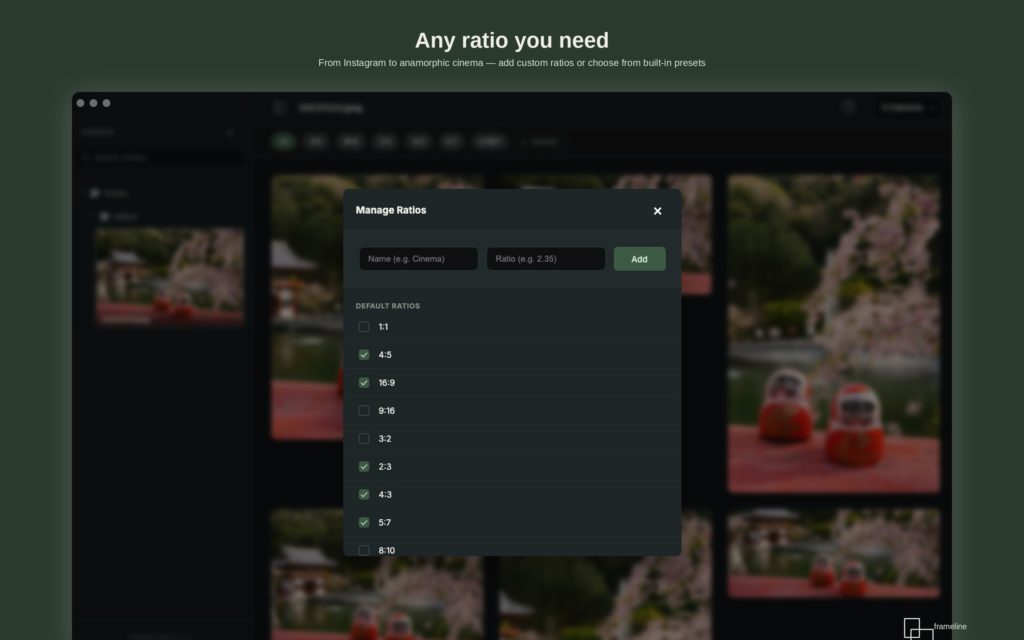
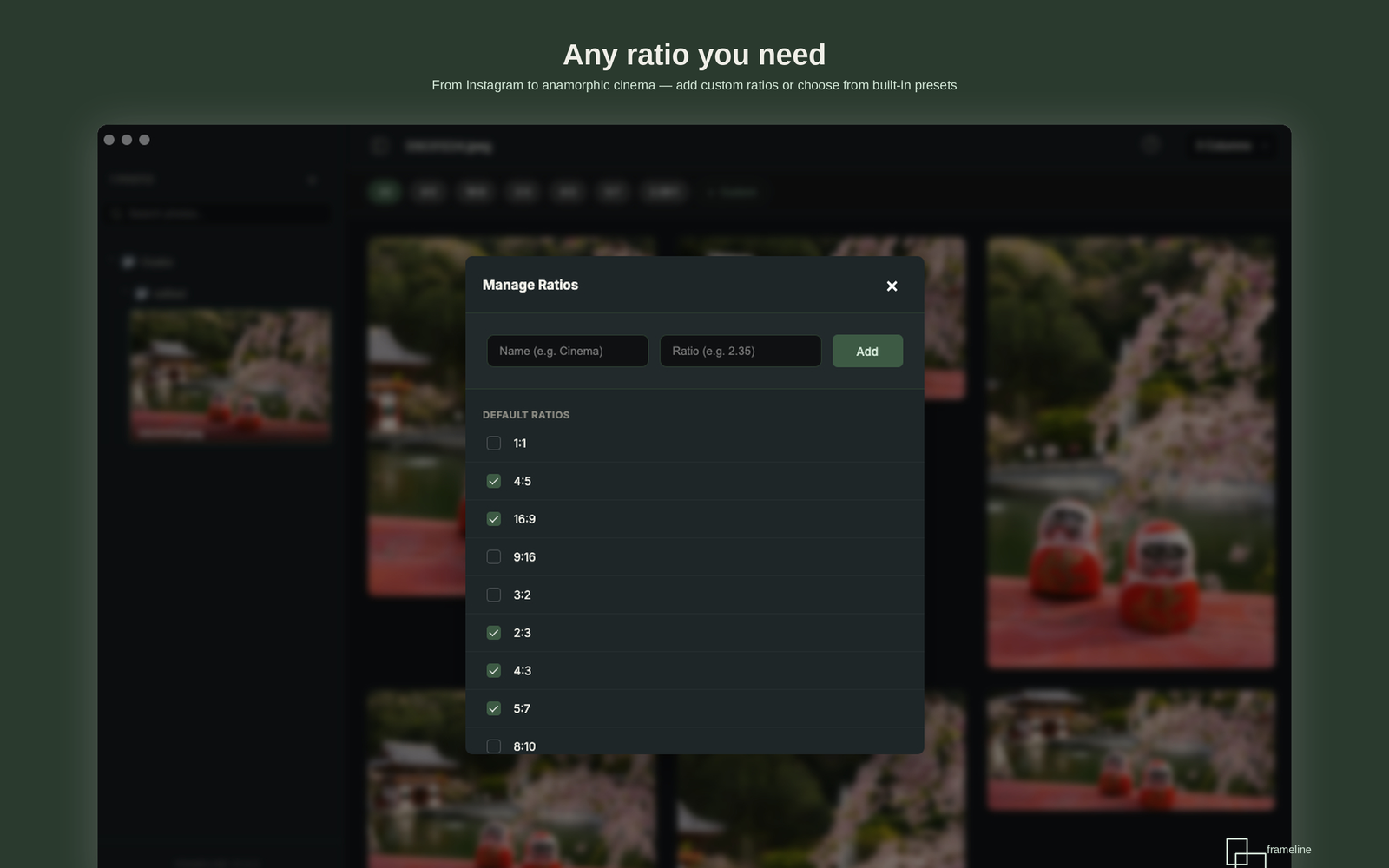
Frameline ships with 30+ predefined aspect ratios, organized into groups that actually make sense:
Digital & Social – 1:1, 4:5, 16:9, 9:16, 3:2. Everything you need for Instagram, YouTube, Stories, and standard digital output.
Print – 2:3, 4:3, 5:7, 8:10. The formats you’ll encounter when ordering prints or preparing files for a gallery.
Film & Cinematic – This is where it gets fun. 3:1 panoramic, 65:24 (the Hasselblad XPan format), 2.39:1 anamorphic widescreen, 6:17 ultra panoramic, and 1:1.33 classic cinema. If you’ve ever wondered what your street photo would look like as an XPan frame, you can see it instantly now.
Custom – Define your own ratios, name them, and save them. They show up in your grid alongside everything else.
How It Works
The interface is simple. On the left, a filmstrip shows all photos in the directory you’ve loaded (you can also drag and drop multiple images).
On the right, the aspect ratio grid shows every crop for the selected photo.
Click any preview to reposition the crop by dragging. Check the boxes on the ratios you want, hit export, and Frameline creates a clean folder structure:
/exports
  /photo1
    photo1_1x1.jpg
    photo1_4x5.jpg
    photo1_16x9.jpg
  /photo2
    photo2_2.39x1.jpg
    photo2_3x2.jpg
Navigate through your photos with the filmstrip, adjust crops, and export.
Move on to the next one. It’s fast because there’s nothing else competing for your attention.
Built for Photographers.
Frameline is a one-time purchase for $19. No subscription. No account required. No cloud uploads. Your photos never leave your Mac.
It works completely offline because there’s no reason a cropping tool needs the internet.
It’s native macOS, so it launches fast and feels like it belongs on your machine.
What’s Next
Frameline is the first in a series of photography apps I’m building under patrickposner.com.
The idea is simple: small, focused tools that do one thing exceptionally well. No bloat, no subscriptions, no compromise on quality.